Creating Formulas
Learning Objectives:
- How to create a formula
- Purpose of formulas
Creating a Formula Within a Cell
You can also create formulas using specific cell values. If cells already have values placed in them. You can select these cells to use them for the formula. Now let’s go through an example.
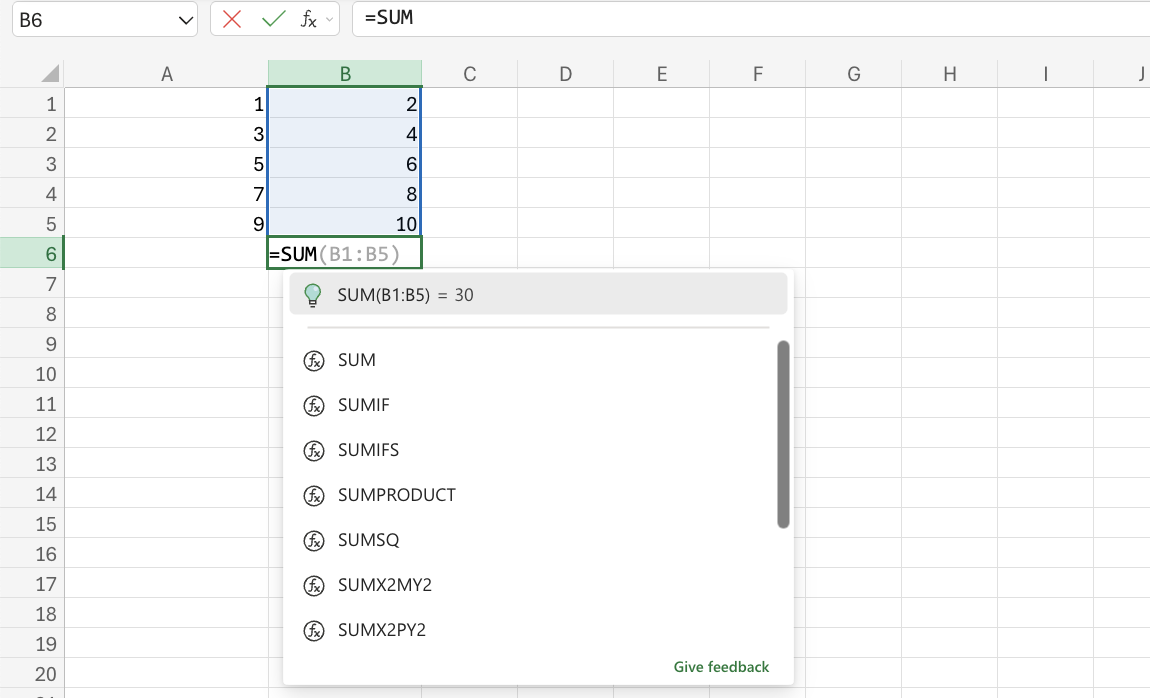
In this example, we use the = sign to tell Excel that we are going to use a formula in this cell. Then we write the formula (in this case, we are using Excel's built-in addition formula) and select the cells we are going to use in the formula. Then Excel presents the output in the cell.
This can also be done using the fill operation.
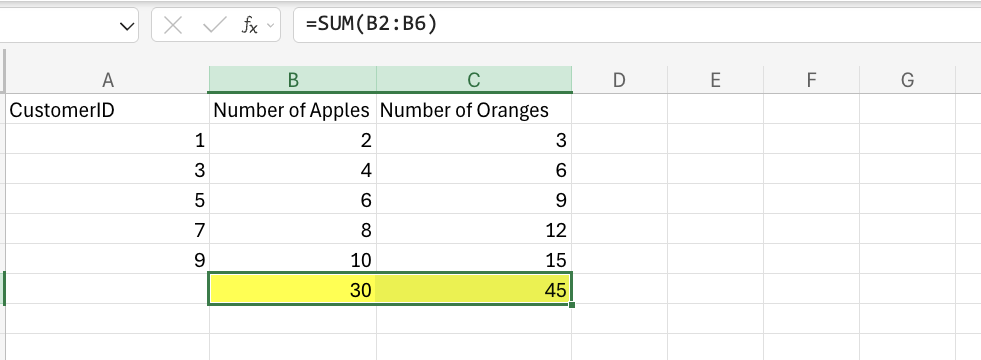
In this example, we are using the sum formula we used in the prior example to calculate the sum of the number of oranges we have. We used the fill operation to drag the cell that contains the formula (the cell with 30 in yellow) and dragged it over to the side next to it so that Excel will calculate the sum of the numbers in the column with oranges.