Format Borders
Format Borders
Learning Objectives:
- Understanding how to add and remove cell borders.
- Understanding methods to customize format borders.
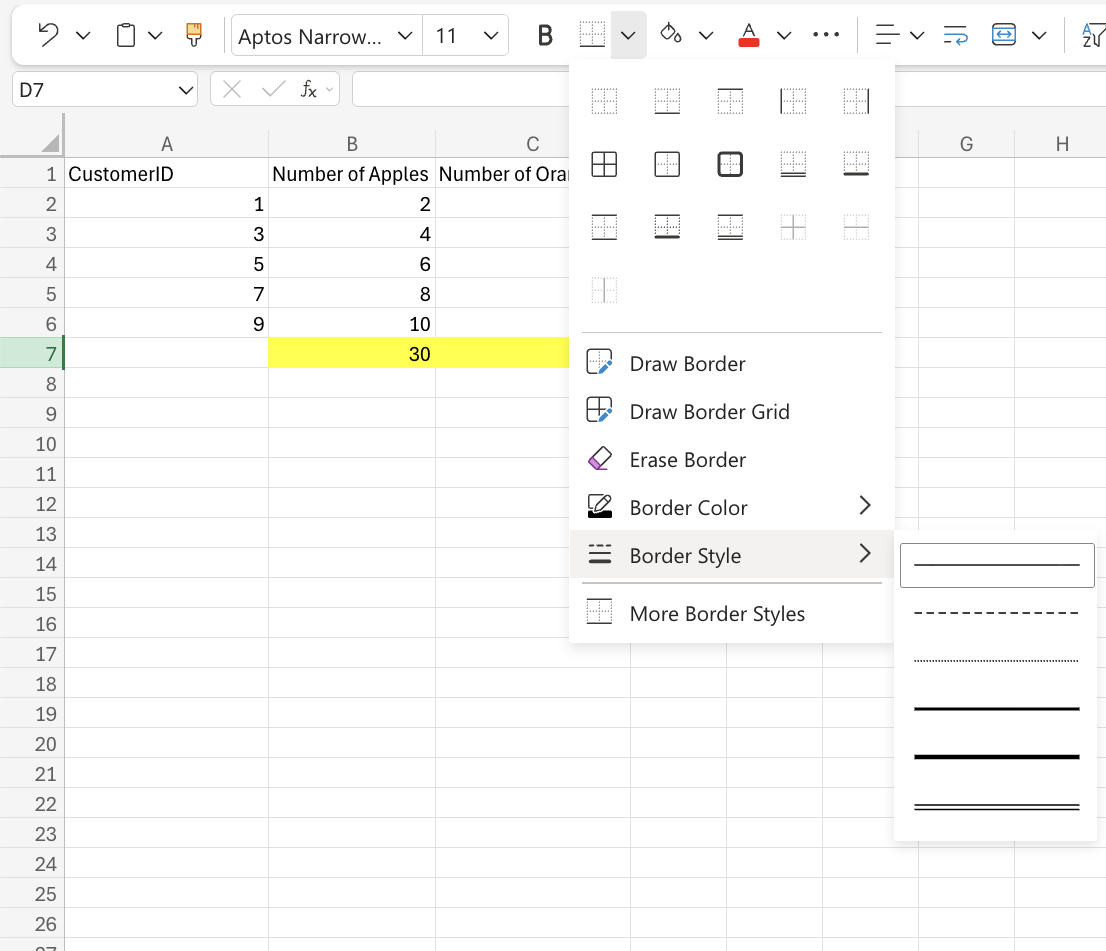
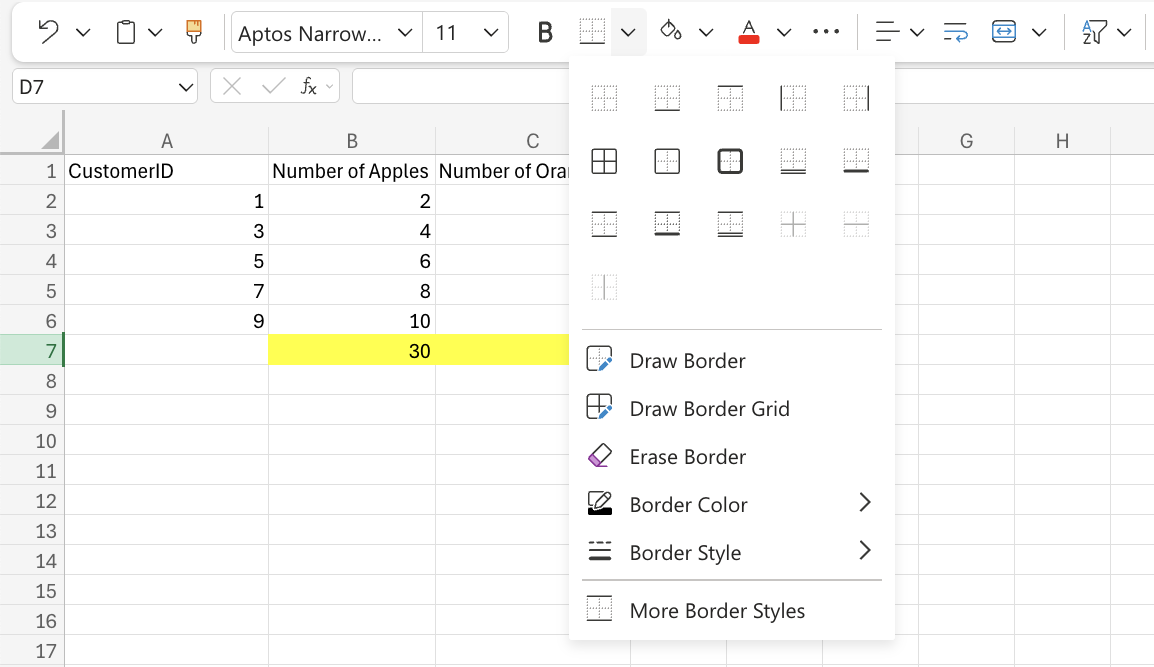
Borders can be added and removed. Colors and style can be changed. To add borders to a cell or a range of cells, click the Borders button on the Ribbon. It is located in the Font group on the ribbon. The default border is a black underline.
Border Colors
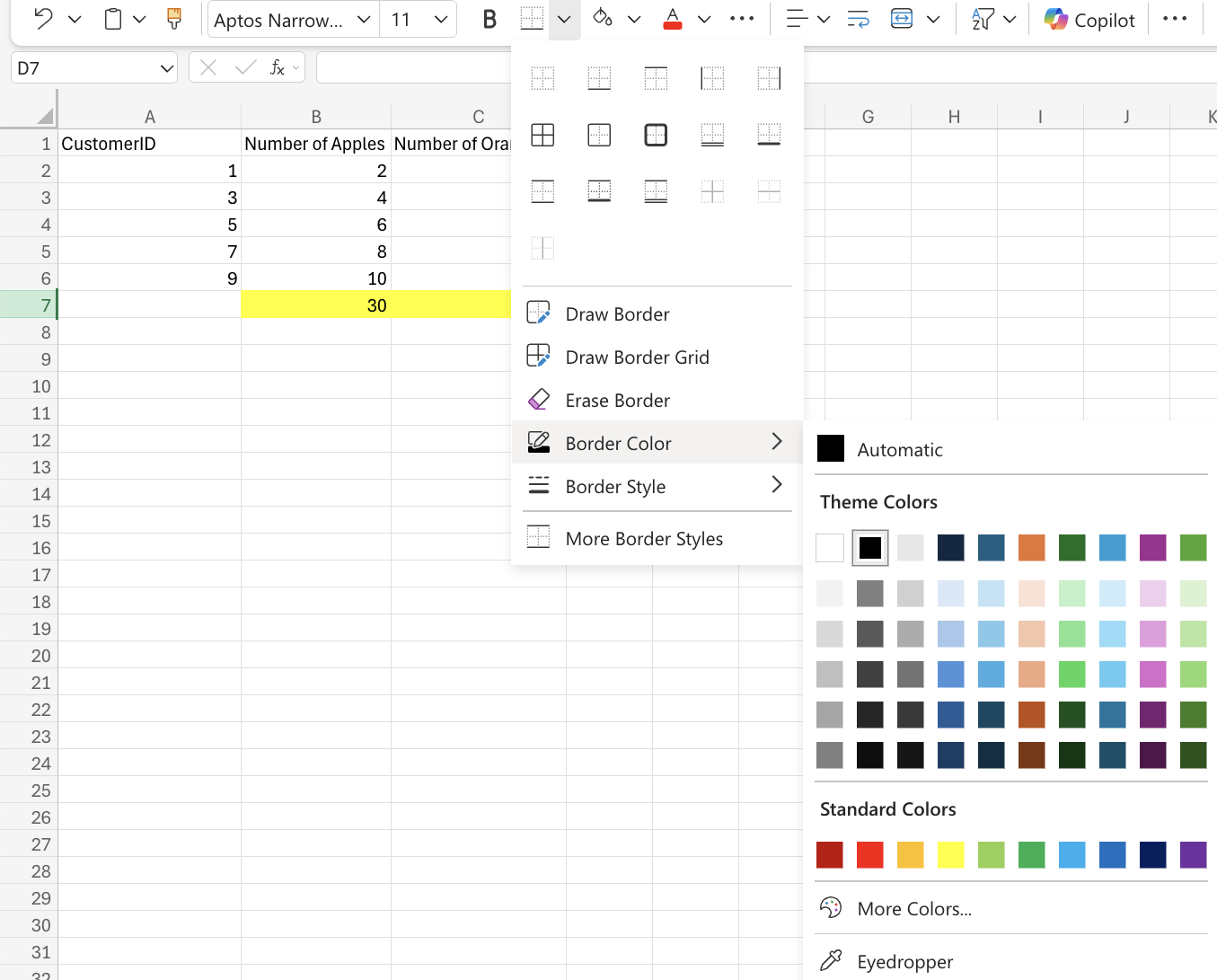
You can also add colors to the borders by selecting a color before adding the border.
Border Styles
There are six different border styles that Excel offers to change the style of the border lines. These six different borders are:- Solid line
- Dashed line
- Dotted line
- Medium line
- Thick line
- Double line