Introduction to Excel Math
Arithmetic Operations
Learning Objectives:
- Learning the how to utilize common arithmetic operations in Excel.
- Learning how to use absolute reference when using arithmetic operations.
Addition Operators
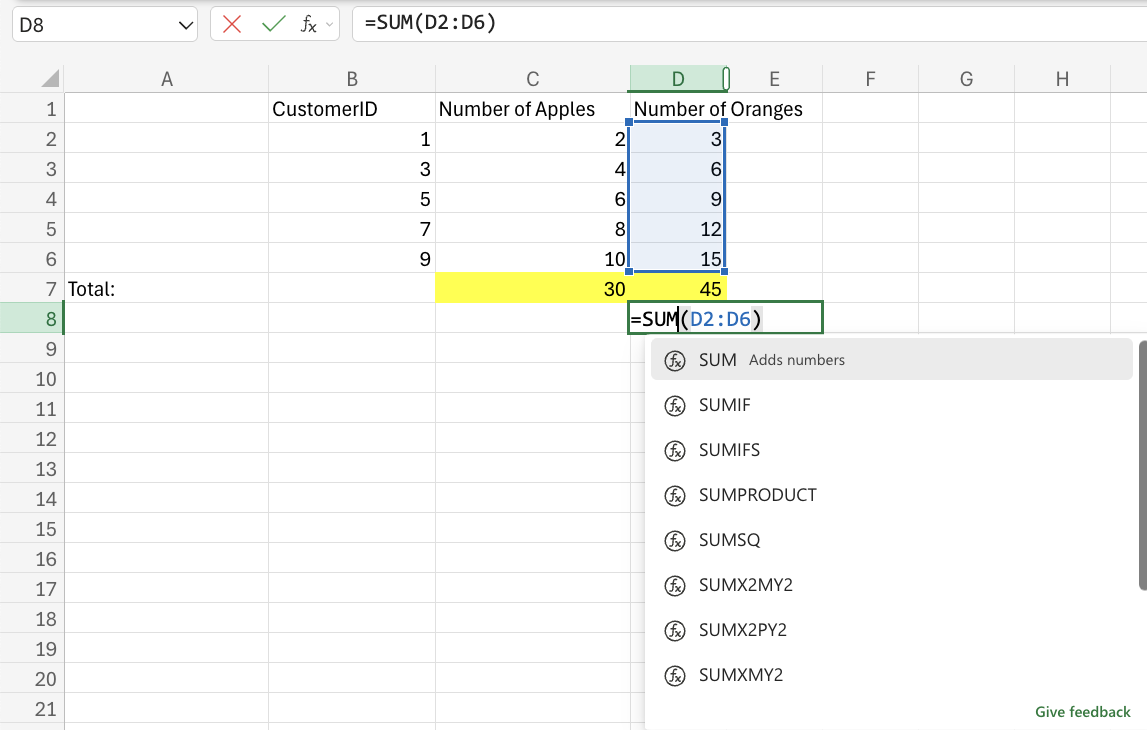
Addition uses the + symbol in Excel in order to add cell values together. This can be used either with the + symbol or by using the SUM function.
Subtraction Operators
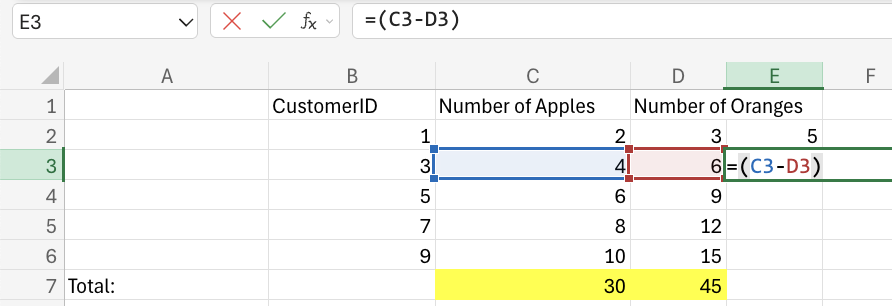
Subtraction uses the - operator to subtract cell values.
Multiplication Operators
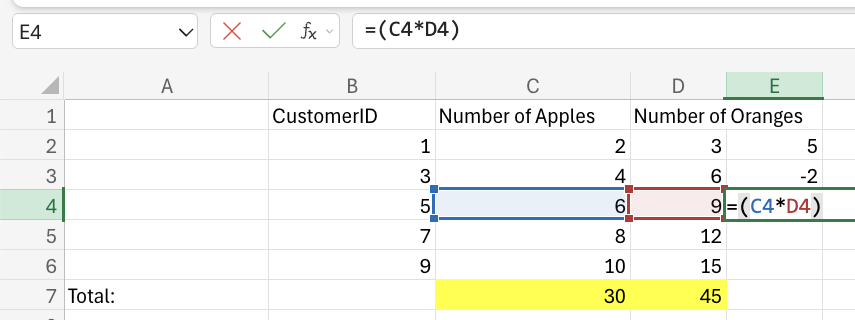
To multiply cell values, use the * symbol in Excel.
Multiplying Using Absolute Reference
You can also use absolute reference to lock a cell and multiply it with other cells. How to do it, step by step:
- Select a cell and type (=)
- Select the cell you want to lock and add two dollar signs ($) before the column and row
- Type (*)
- Select another cell
- Hit enter
- Fill the range
Example Scenario: Cell B1 contains a tax rate (e.g., 0.06). Column A contains item prices. You have prices in column A and a fixed tax rate in cell B1. You want to calculate the price of the items with the tax.
Formula: =A2*$B$1
What happens? Excel multiplies 50 by the locked tax rate (0.06). When you drag the formula down, $B$1 stays the same.
Division Operator
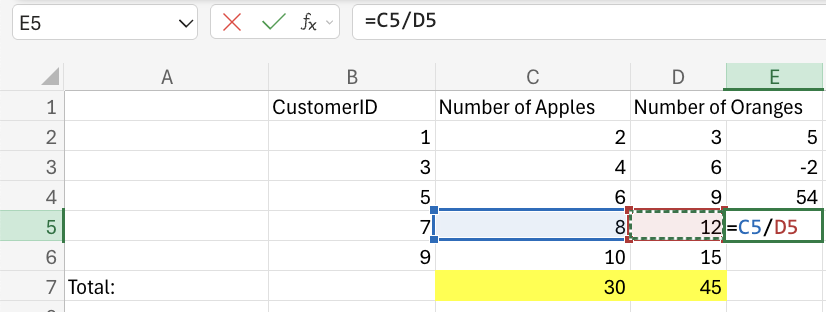
Division uses the / symbol in Excel.
Dividing Using Absolute Reference
You can also use absolute reference to lock a cell and divide it with other cells. How to do it, step by step:- Select a cell and type (=)
- Select the cell you want to lock and add two dollar signs ($) before the column and row
- Type (/)
- Select another cell
- Hit enter
- Fill the range
Mini Example: You want to calculate the percentage of a total value.
Formula: =A2/$B$1
What happens? Excel divides 20 by the locked total (100). When filled down, $B$1 never changes.