Excel Overview
Excel Spreadsheet Overview
Learning Objectives
- Understanding the basic aspects of the Excel Spreadsheet
- Demonstrating ability to edit sheet tabs
- How to properly use the undo and redo functions
The Workbook
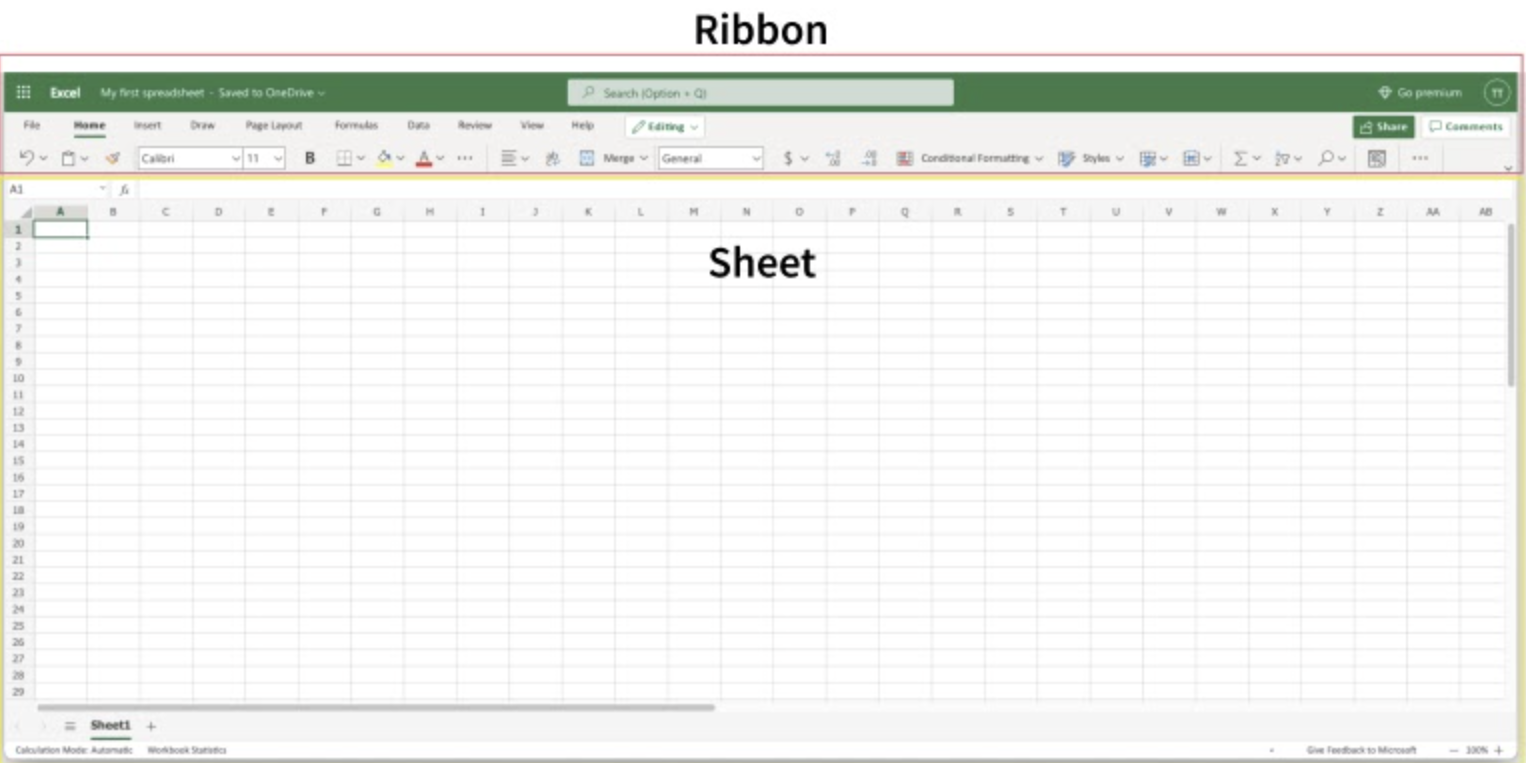
When you open a new blank workbook, you will be greeted with a large spreadsheet. The spreadsheet consists of two components: the Sheet and the Ribbon.
The Ribbon
The ribbon is a row of tabs and commands at the top of the Excel workbook that helps you perform tasks. It also provides Excel commands shortcuts. A command allows you to execute an action. This command could be to change a font size, inserting a table, or inserting a column or row.
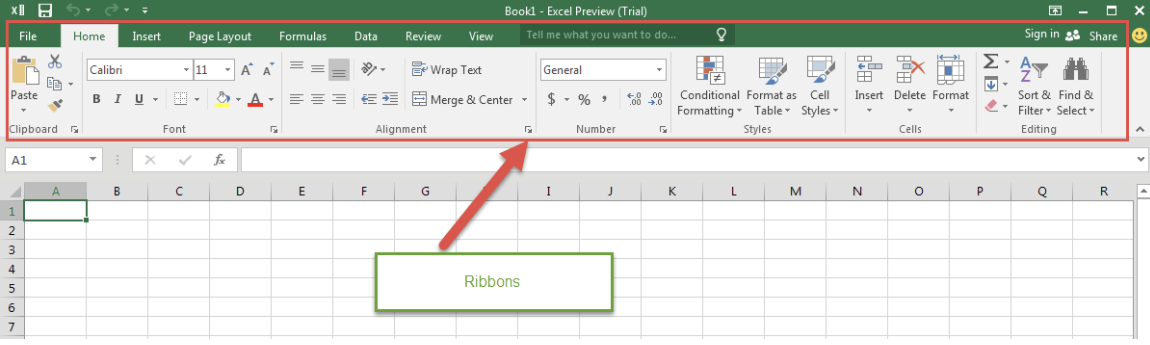
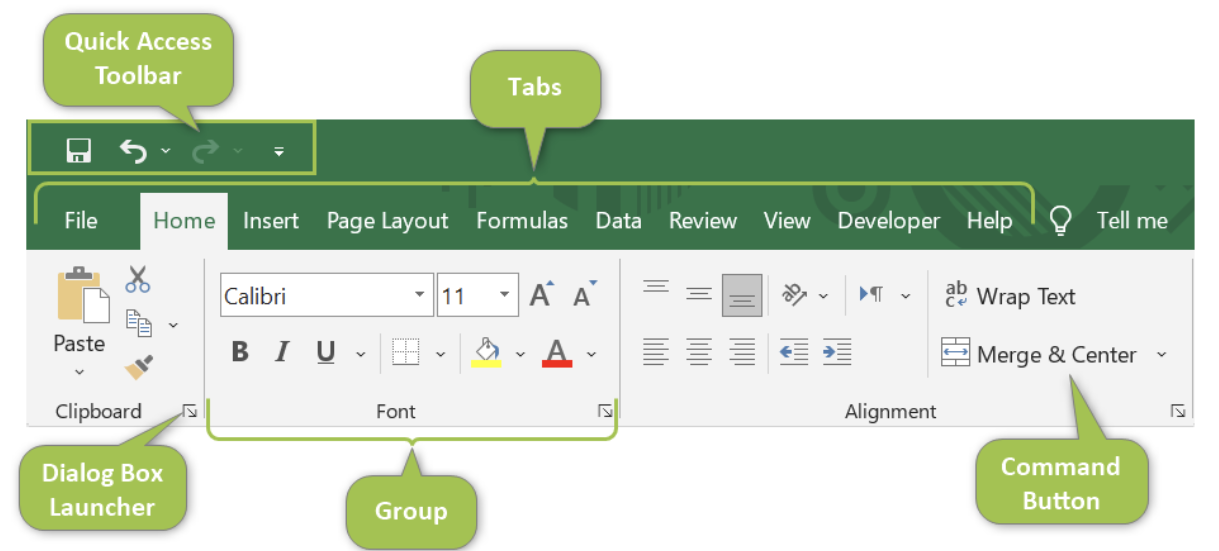
The ribbon has four main components:
- App Launcher - This is the Microsoft Office 365 navigation bar. This allows you to access different apps from the Microsoft Office 365 suite.
- Tabs - This is a menu with sub divisions sorted into groups. This allows you to navigate between menu options with various functions.
- Groups - This is a set of related commands in a specific Tab. Groups are separated by thin vertical dividers.
- Commands - These are buttons used to do actions.
The Sheet
The sheet is a set of rows and columns. The rectangle boxes in the sheet are called cells. The values that are allowed in cells are both numbers and letters. Each cell has a unique reference, which is called by its coordinates.
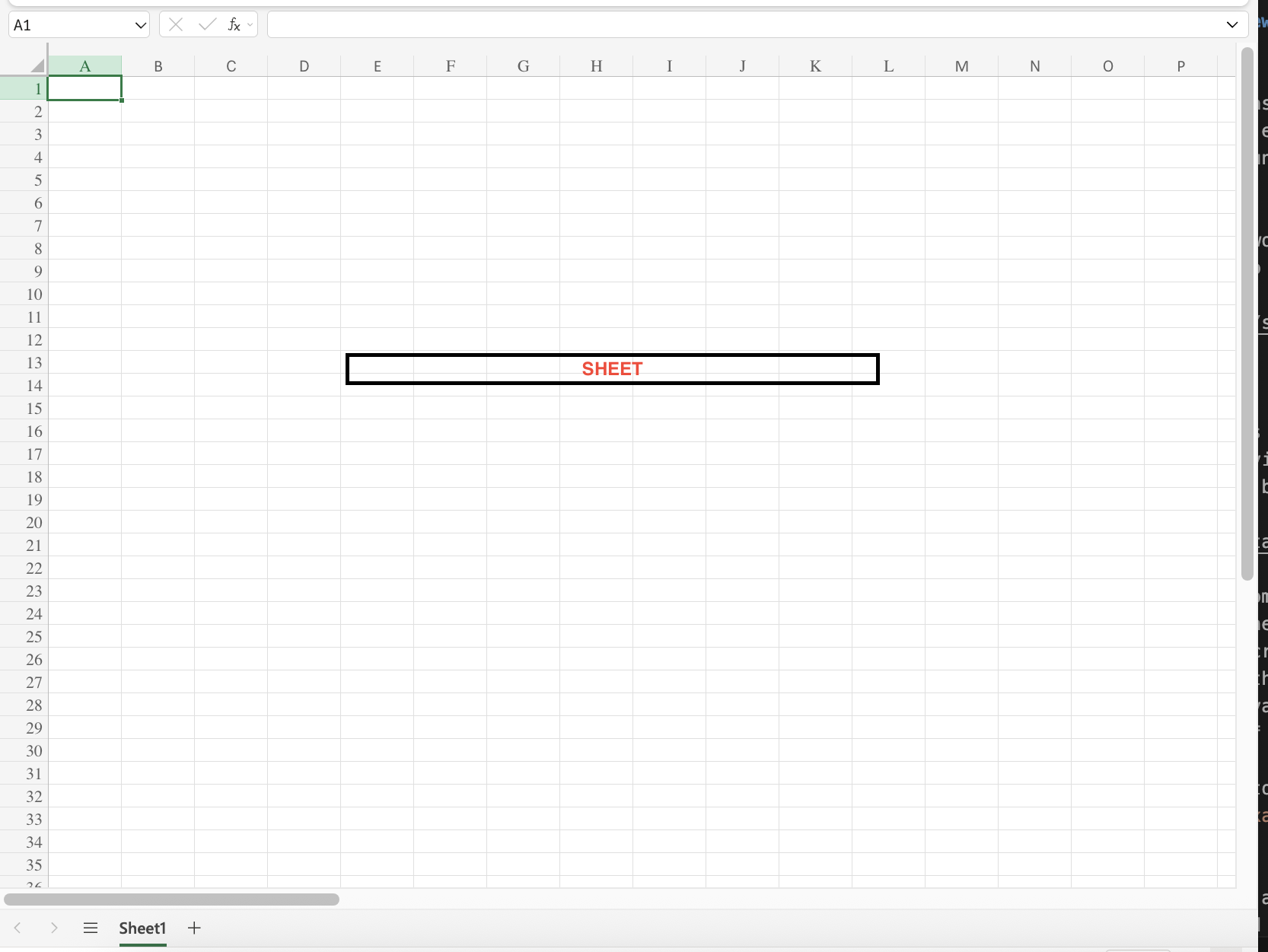
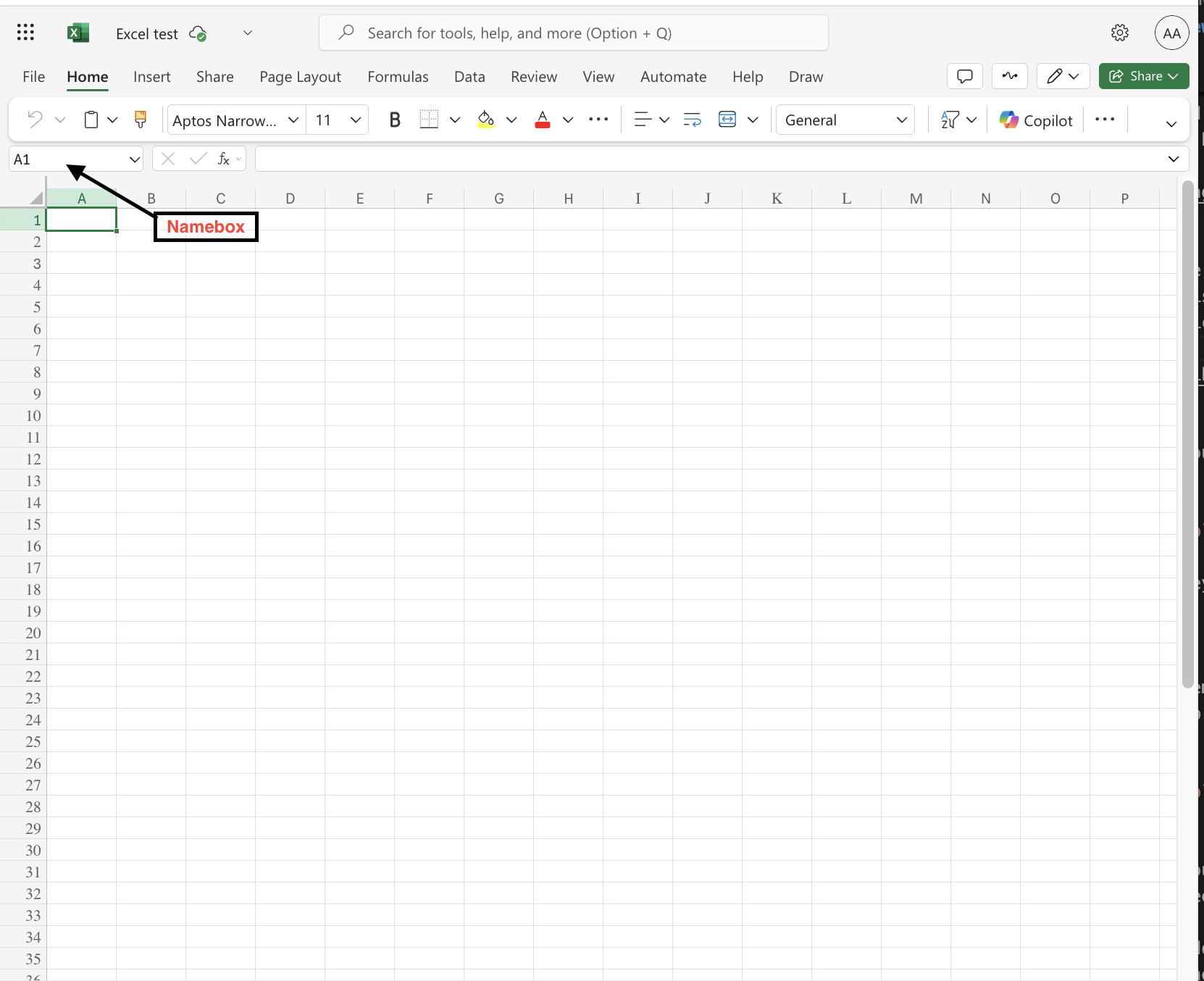
As you can see, this is where the columns and rows intersect. The letter in the coordinate is the column and the number is the row. This can also be found in the Name Box, located under the ribbon, to tell you which cell is selected.
Adding Sheet Tabs
When opening a workbook, you start with one Sheet by default. If you want to add another sheet to the same workbook, you can hit the plus button at the bottom of the sheet.
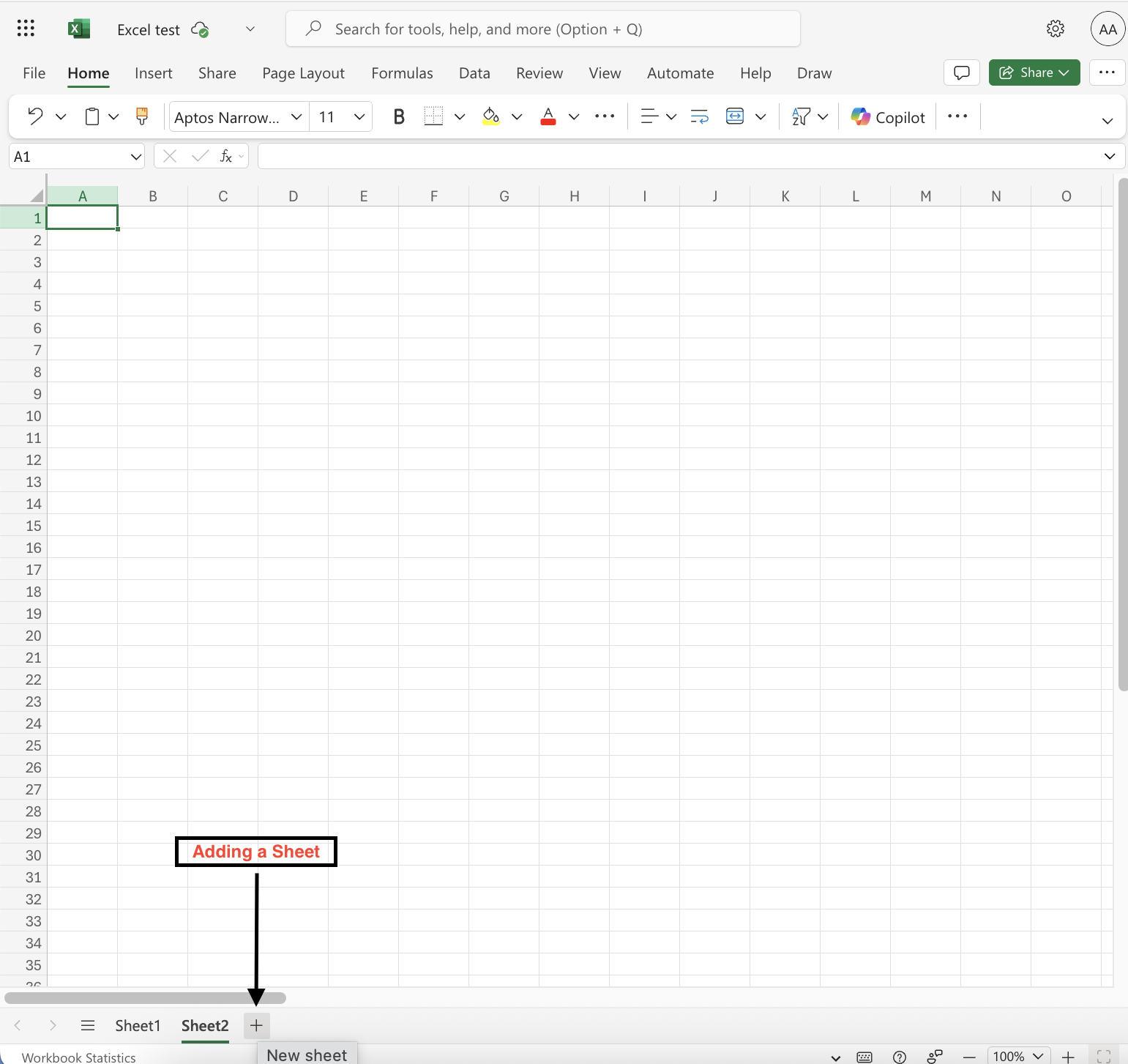
Tip: You can use the keyboard shortcut, Shift + F11 to also add a sheet tab.
Editing Sheet Tabs
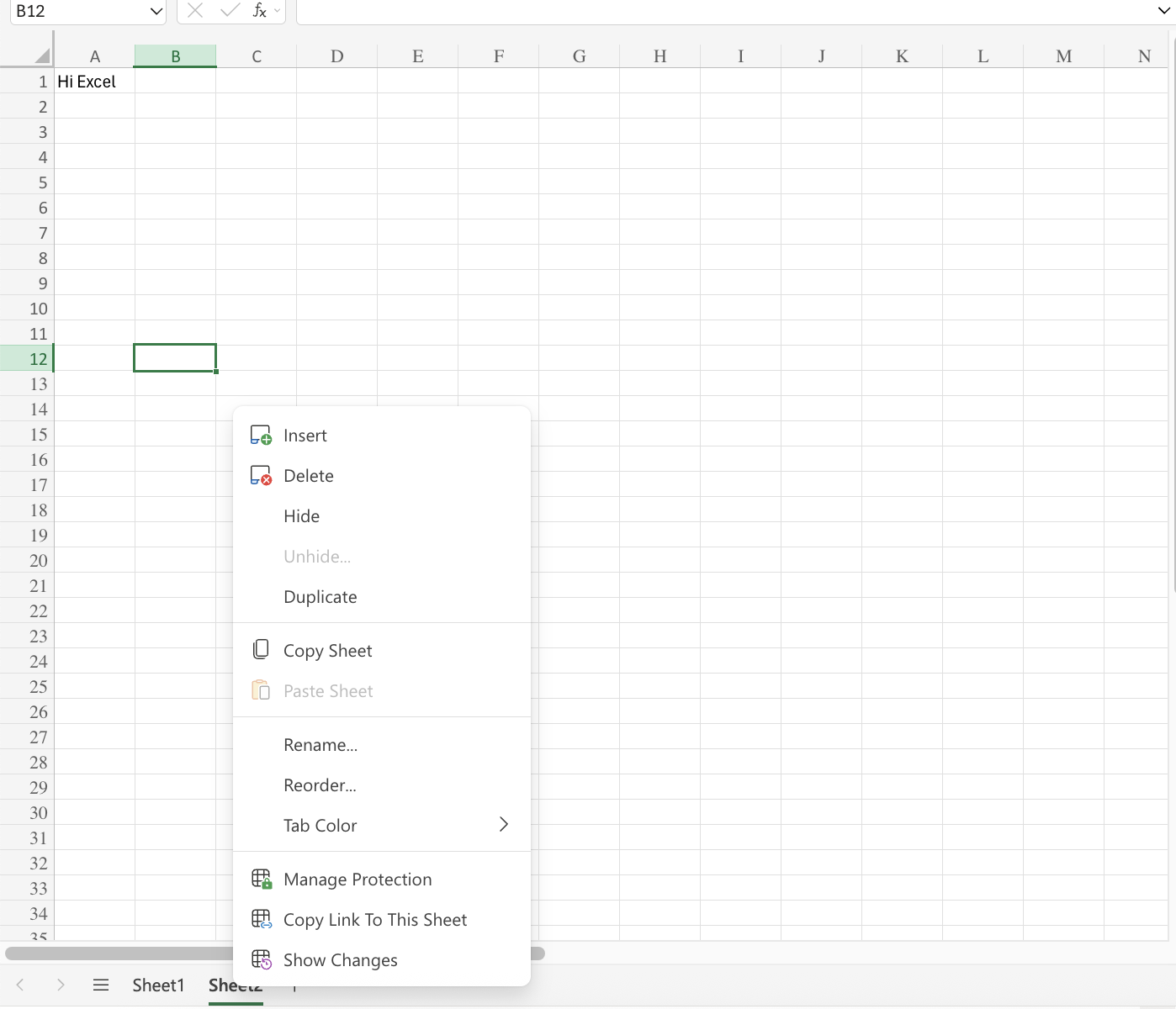
New sheets can be added, removed, and renamed. To edit a sheet tab, you will right-click with your mouse on the sheet tab. This will give you a list of commands you can complete in the specific tab.