Range Operations
Range Operations
Learning Objectives
- Understanding the four different operations for selecting cells.
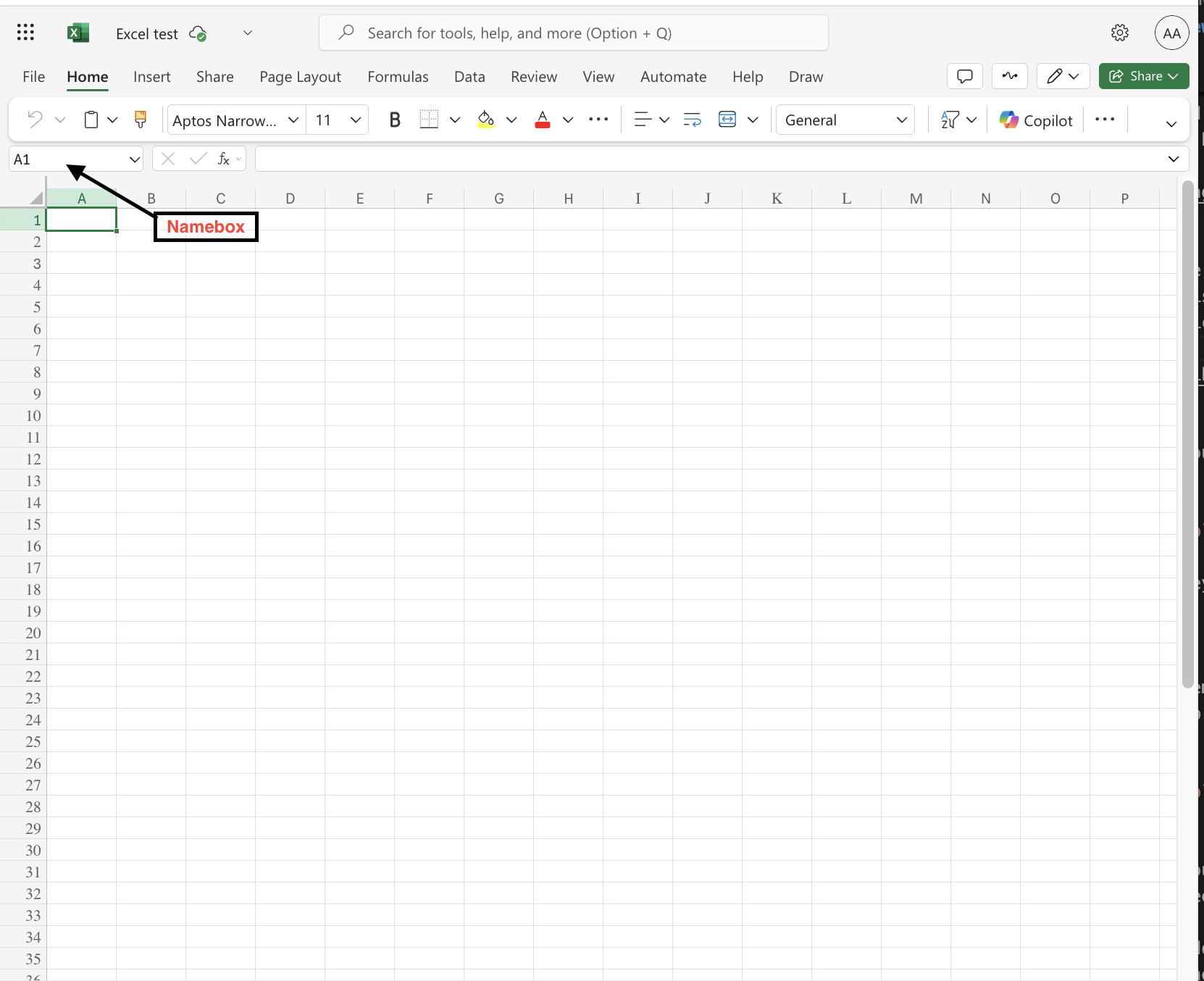
- Understanding the function of the Name Box.
Range
Range is an operation that allows you to work with selections of cells.There are four different operations for selection:
- Selecting a cell
- Selecting multiple cells
- Selecting a column
- Selecting a row
Selecting a Cell
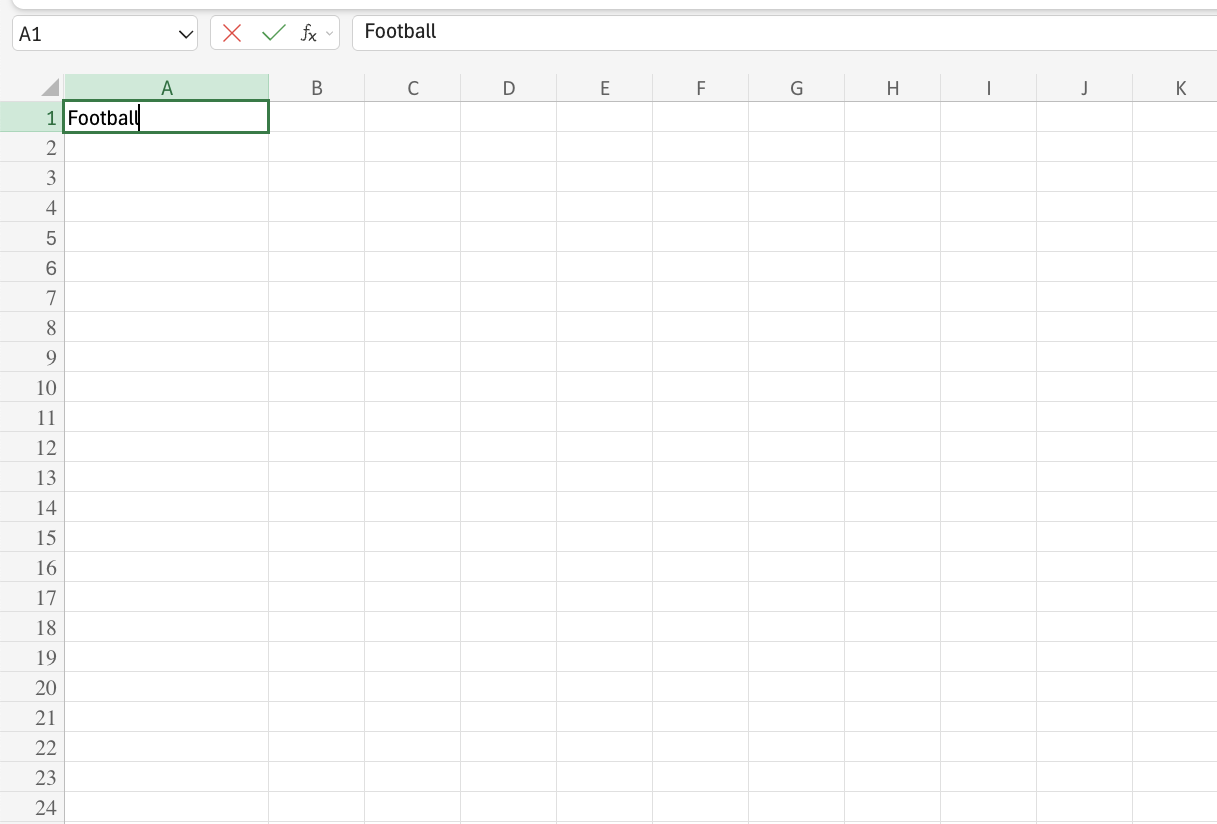
Cells are selected by left-clicking on the cell you want to select. More than one cell can be selected by pressing and holding down CTRL or Command and left-clicking the cells.When the cells are selected, you can let go of CTRL or Command.
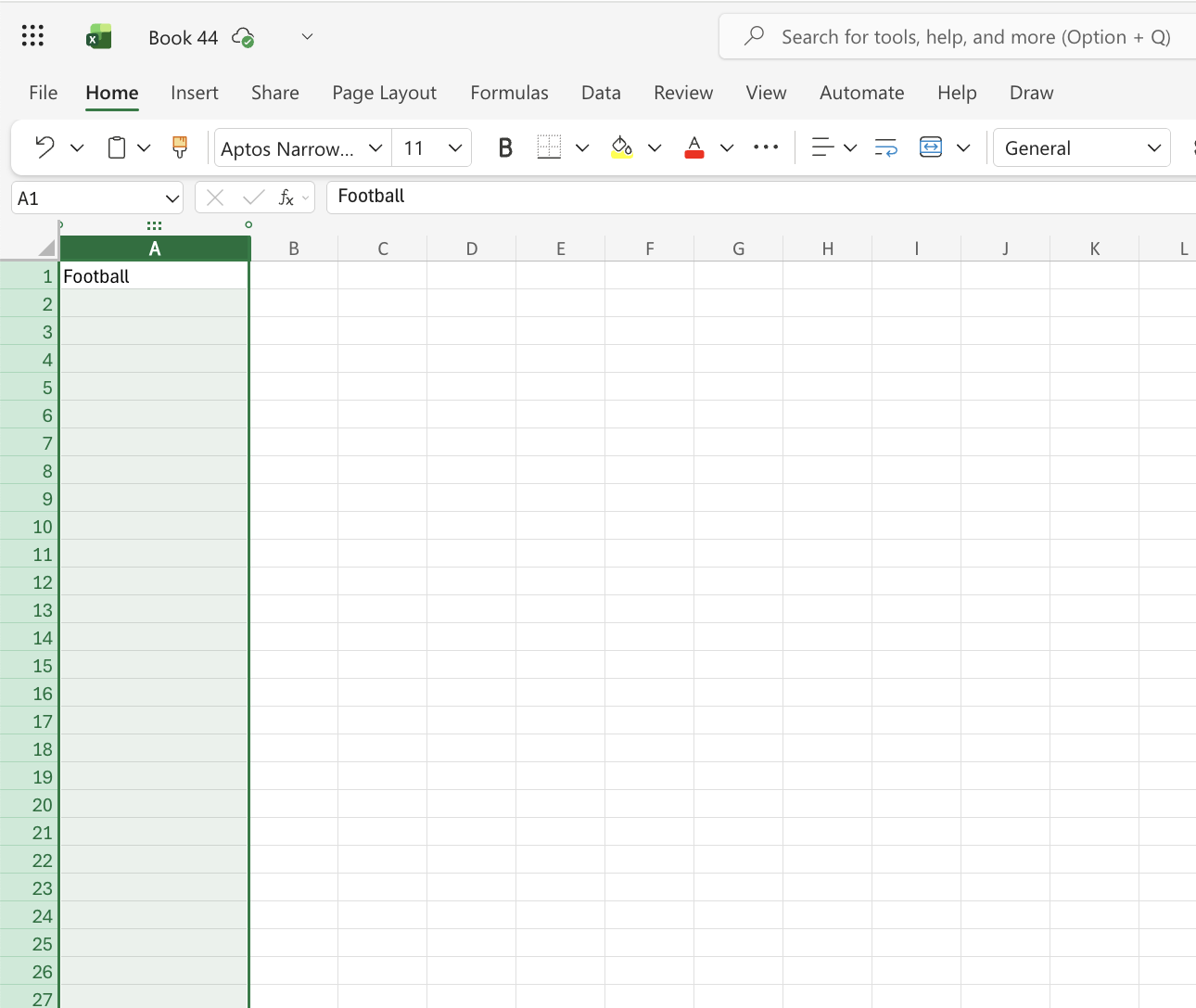
Selecting a Column
Columns are selected by left-clicking them. This will select all the cells in the sheet related to the column.
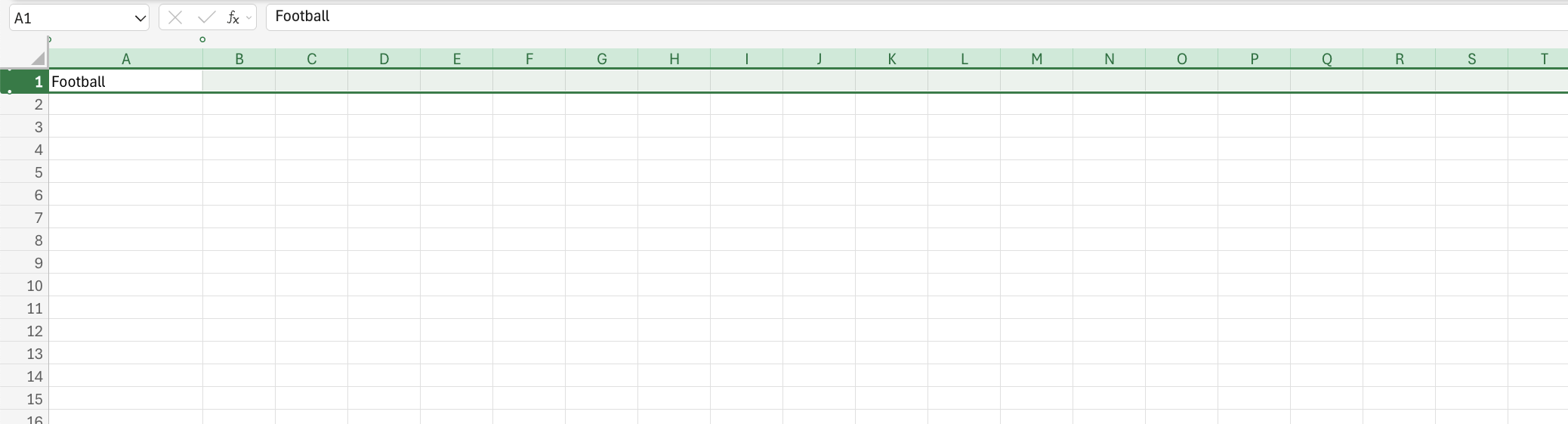
Selecting a Row
Rows are selected by left-clicking them. This will select all the cells in the sheet related to the rows.
Selecting an Entire Sheet
The entire spreadsheet can be selected by clicking the triangle in the top-left corner of the spreadsheet under the name box.
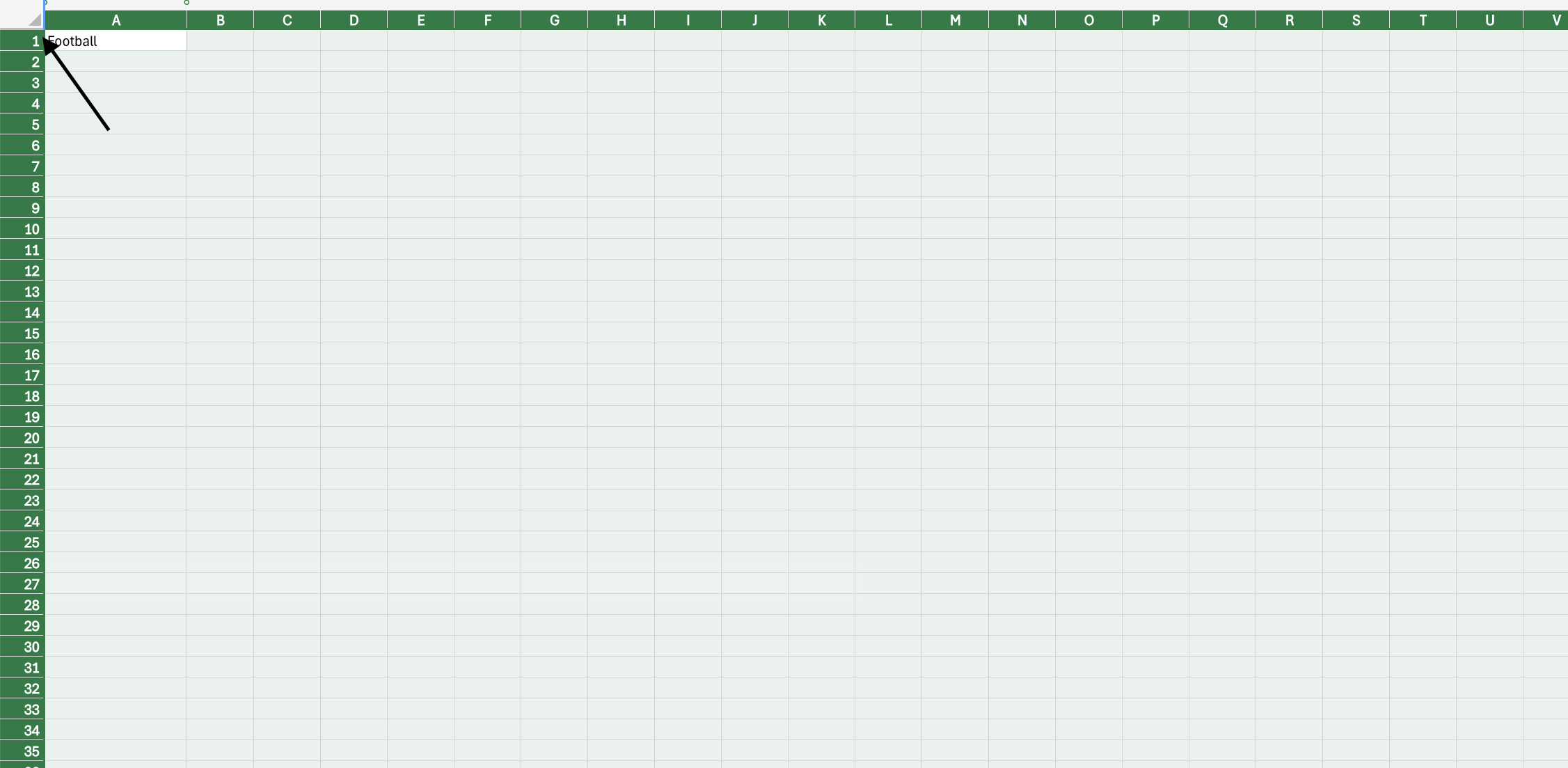
Tip:You can also select the entire spreadsheet by using keyboard shortcuts. The keyboard shortcut for Windows is CTRL + A. It is Cmd + A for MacOS.
Selecting a Range of Cells
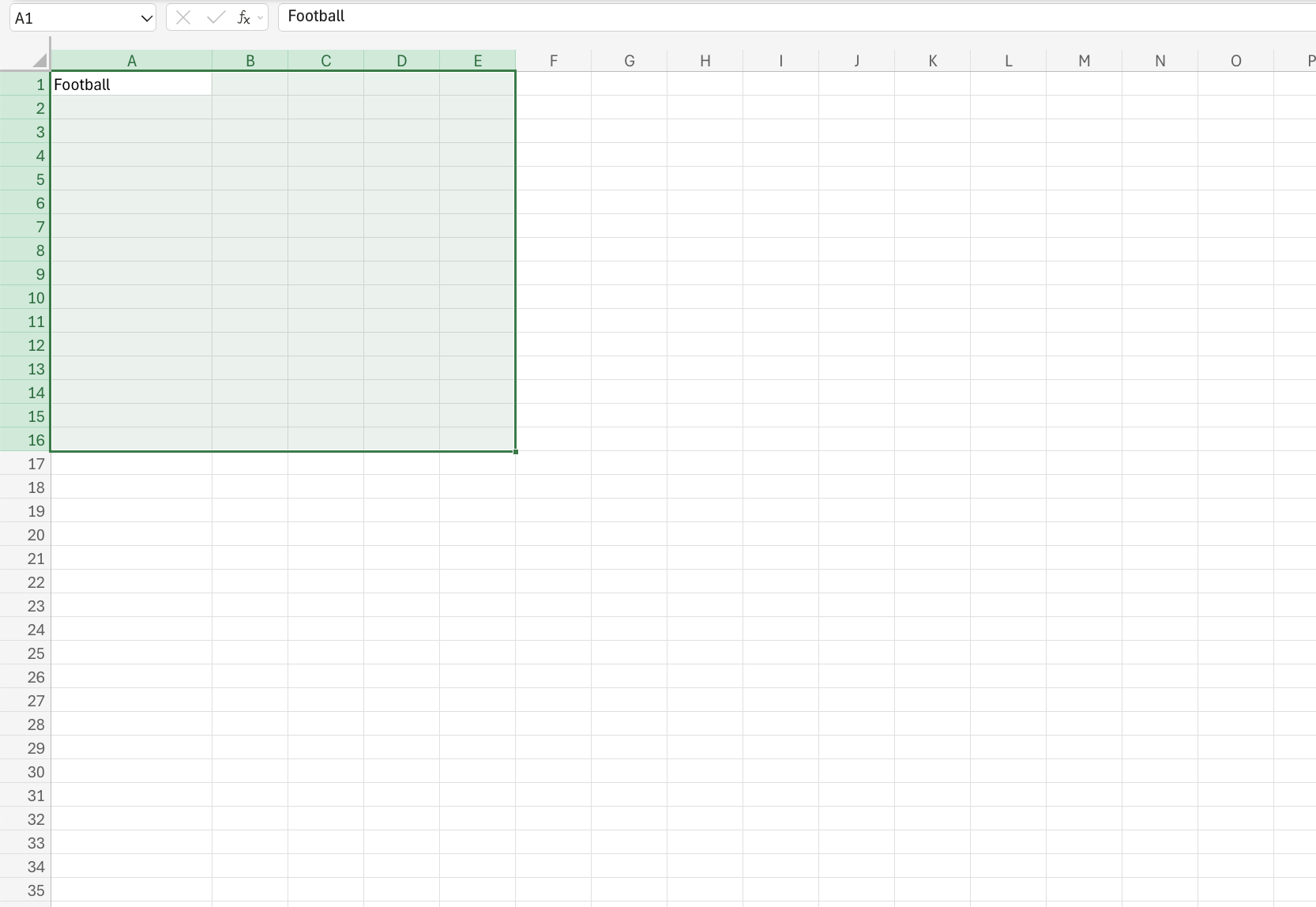
There are two methods to select a range of cells. The first method is the Name Box. In the Name Box, you will type in the coordinates of the cells you want.
The second method is to drag and mark a range. To drag and mark a range, select a cell and hold the mouse button down. Then move your mouse over the range that you want selected. The range of cells that is marked will turn grey. Then let go of the mouse button when you have marked the range.