Number Formats
Number Formats
Learning Objectives:
- Learning the common Excel formatting fonts
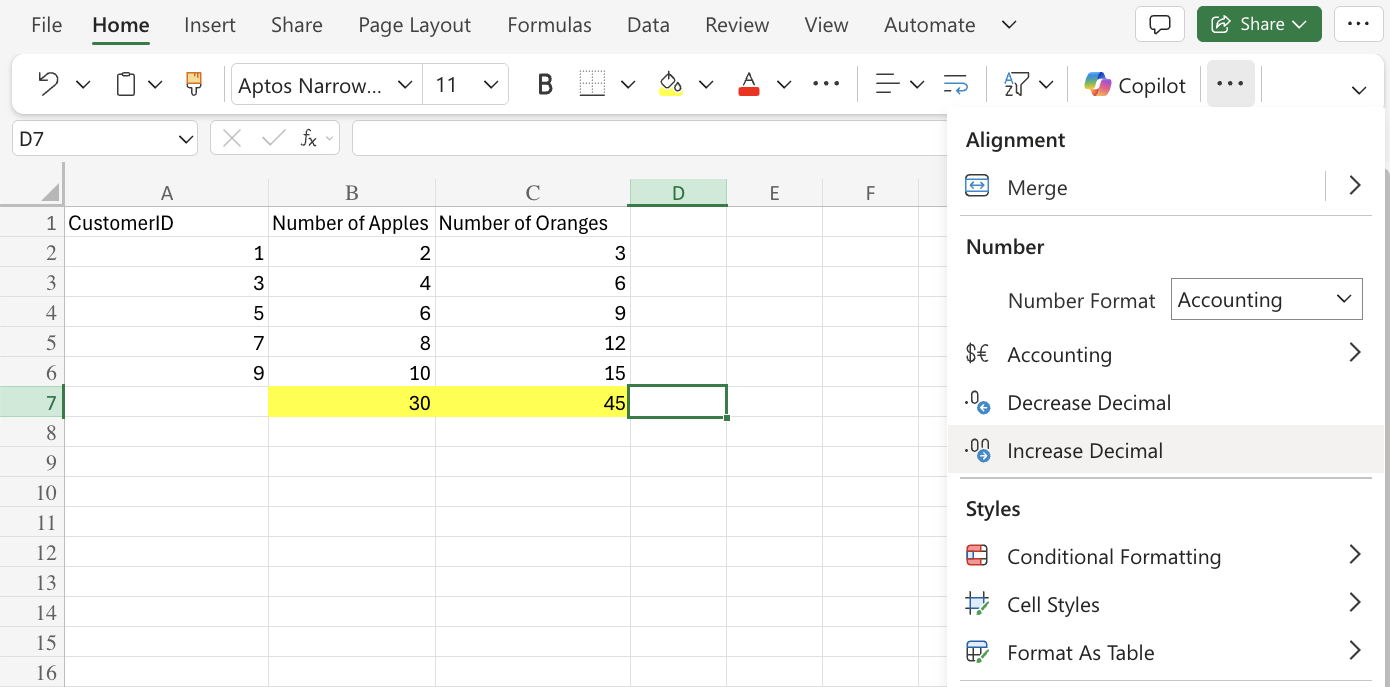
- Learning the Increase/Decrease Decimal Command
The default number format is General. General means that Excel is displing the numbers in the manner that it is typed. It automatically switches to scientific notation if the number is very large and rounds decimals if the cell is not wide enough. However, the underlying value remains the same.
A couple of common number formats are:
A couple of common number formats are:
- General
- Number
- Currency
- Time
Changing Number Formats
Number formats can be changed by clicking the number format dropdown in the Numbers group in the Ribbon.
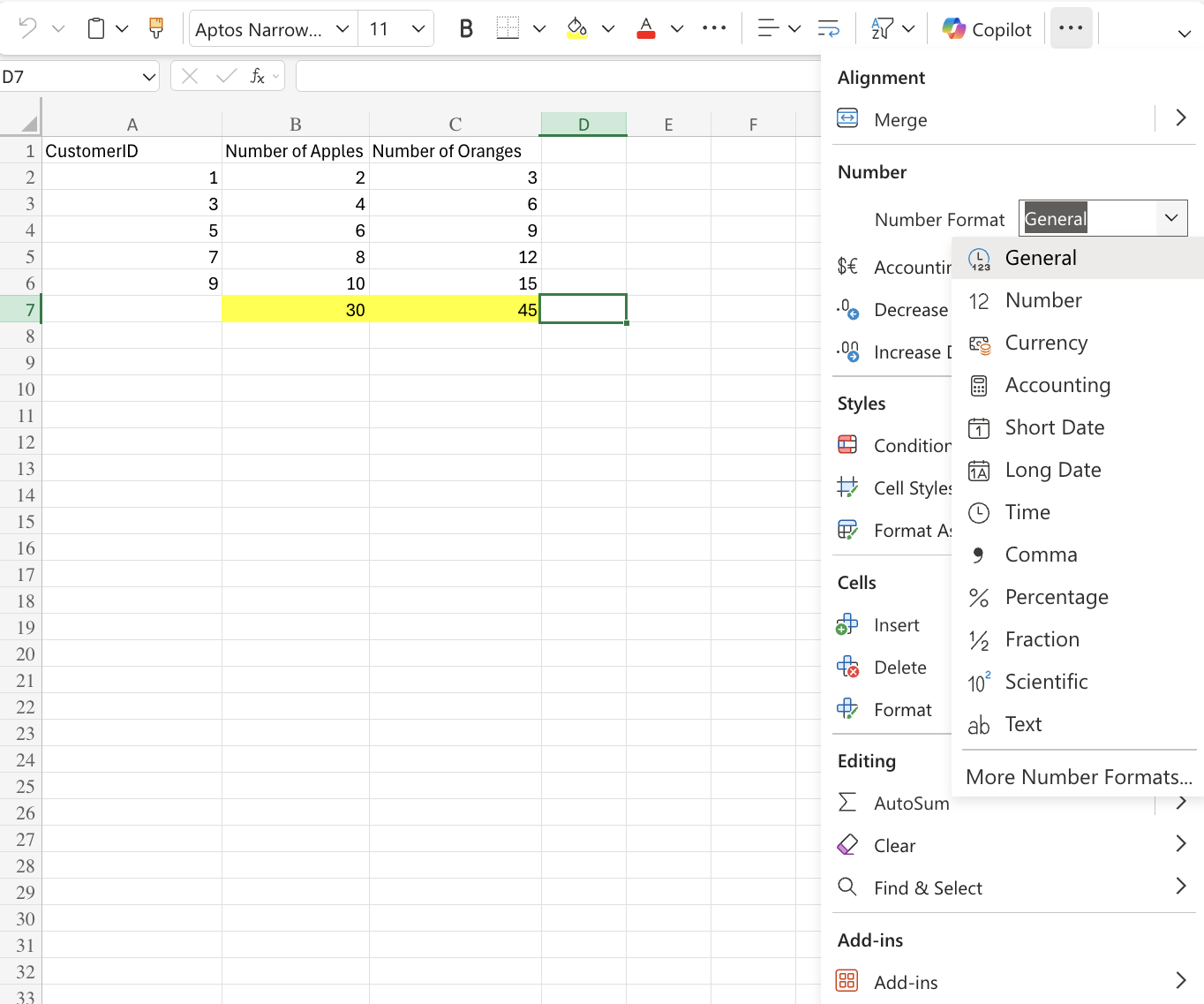
Note: The currency format will use your local currency by default. If you would like to change your currency, it can be changed in the dropdown menu by clicking More Number Formats at the bottom of the menu and click on Currency.
Decimals
The number of decimals can be increased and decreased using the Increasing Decimal and/or Decreasing Decimal commands. Clicking these commands will reduce or increase the number of decimals.The commands can be found next to the Number format dropdown menu.