Sorting and Filtering Data
Transforming Data in Excel
Learning Objectives:
- Learning how to sort and filter data in Excel.
- Learning how to apply specific filters in Excel.
Sort Functions
Cell values can be sorted using the Sort Ascending and Sort Descending commands.Sort ascending sorts values from smallest to largest (or in alphabetical order for text values). Sort descending sorts values from largest to smallest (or in reverse alphabetical order for text values).
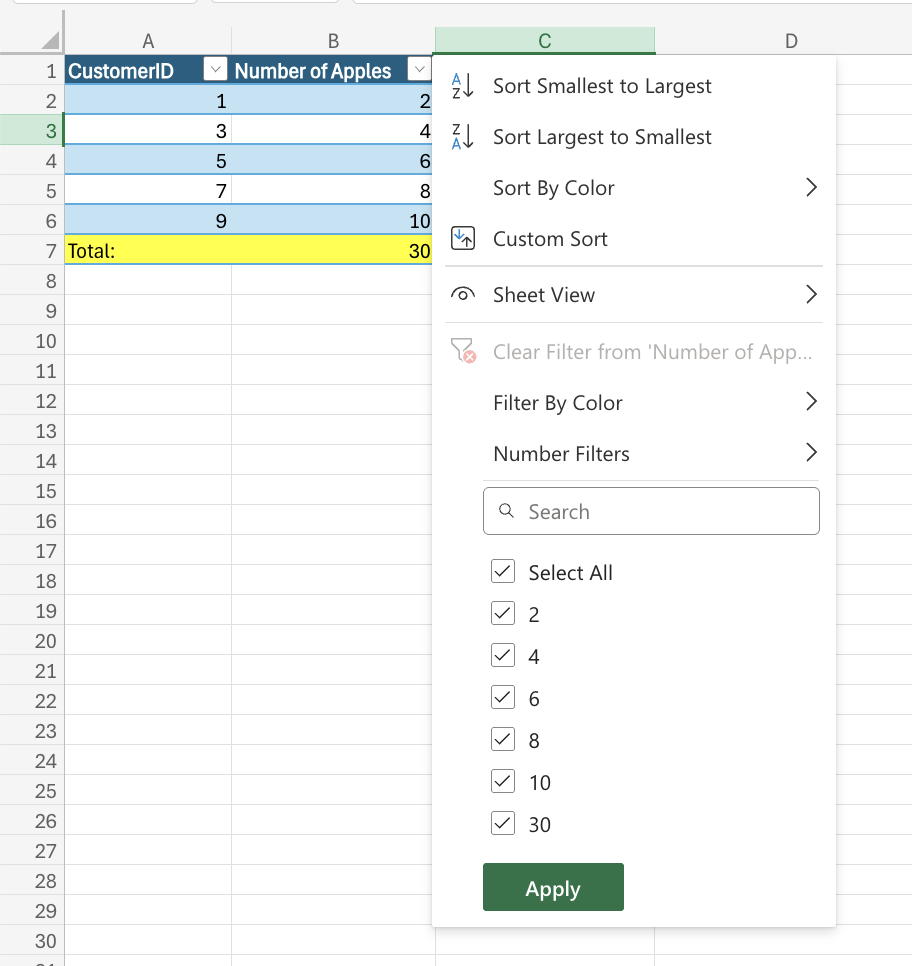
Tip: To sort a range with multiple columns, the entire range must be selected. Sorting only one column in a range will break the relationship between columns.
Filter Functions
Filters can be applied to sort and hide data in a spreadsheet. To filter data in a spreadsheet, access the sort and filter menu in the Ribbon view. You can also access the filter through the Data section in the navigation bar.
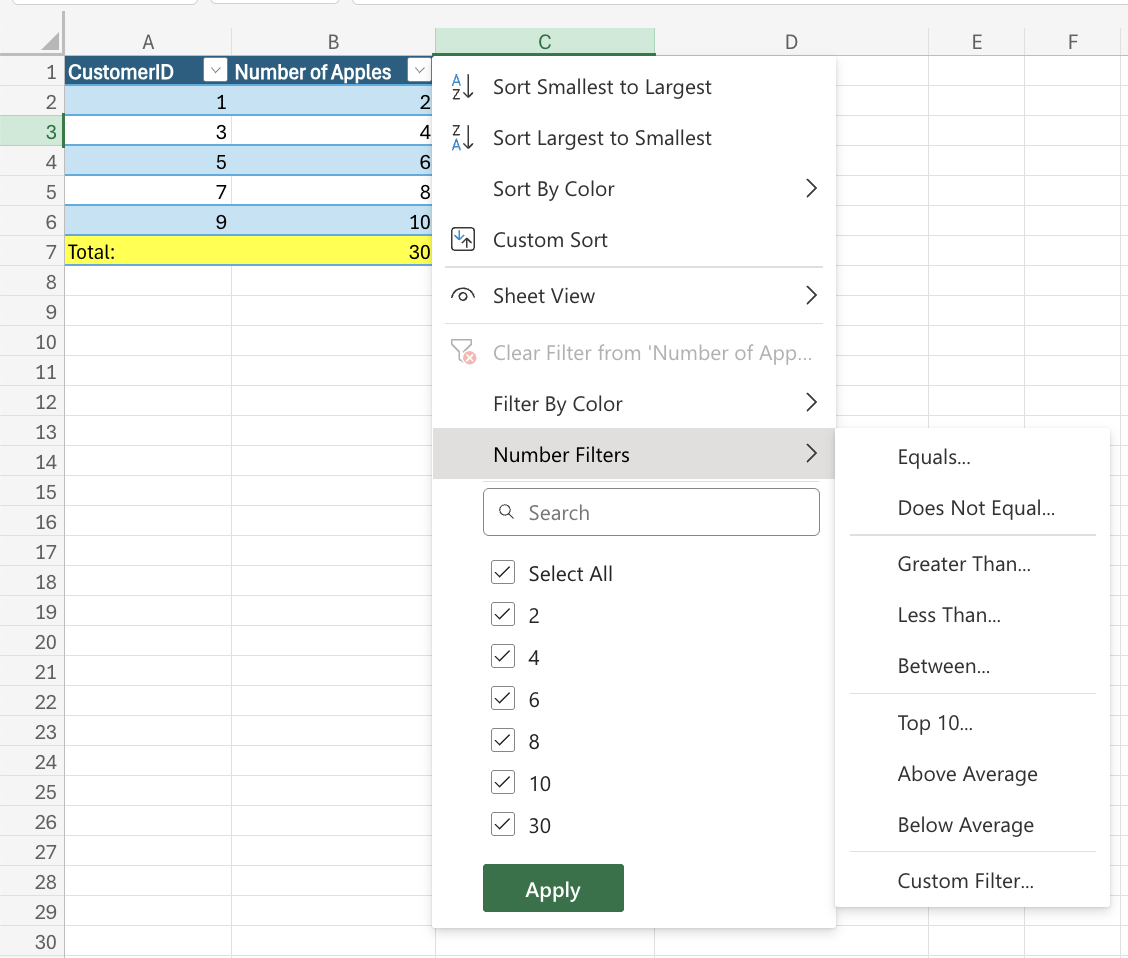
Applying Filters
Filters can be applied by selecting a range and then clicking the Filter command. It is important that you have column headers when applying filters so that you know what data you are filtering.Filters are applied to the top row in a range.
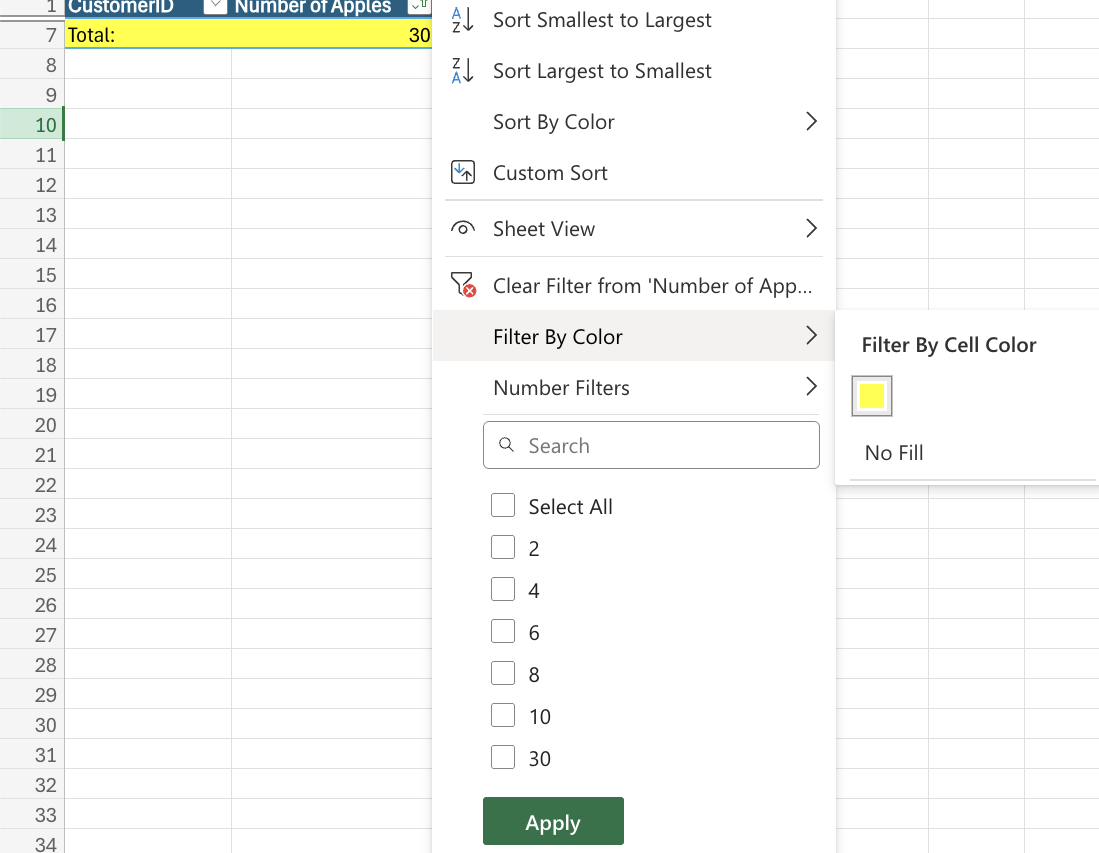
In this example, the table is being filtered by cell color. As shown in the dropdown menu, filters can be cleared from tables if needed.
Filter options allows you to sort and filter columns by specific conditions as shown in the filter dropdown menu.